
Tax Group Settings
Overview
This page provides a comprehensive solution for managing tax rates accurately and efficiently. Using tax groups, you can establish specific tax rates for different jurisdictions, such as countries, states, and cities. This level of detail enables precise tax calculations customized for each jurisdiction.
Once you've defined the tax rates within a tax group, you can manually assign that tax group to your products in the inventory or visit the "System Defaults" page and select the tax group to apply to all inventory automatically. The applicable tax rate is automatically applied to the order total when these products are added to an order. This ensures that the correct taxes are included in the final sum, facilitating accurate tax compliance and reducing manual effort.
Efficient Tax Application for Products: Assign tax groups to your products in the inventory. When these products are included in an order, the corresponding tax rate is automatically applied, eliminating the need for manual calculations and reducing errors.
Accessing the Tax Group Settings Page
Click on the settings icon on the left-hand side of the screen. Then, select the "Tax Group Settings" icon, as highlighted below.

Creating a New Tax Group
Follow these steps to define tax rates for specific countries and regions:
-
Create a Tax Group: Locate and click the "Create Tax Group" button at the bottom right of the screen.
-
Name and Status: On the tax group creation page, provide a name for your tax group in the "Tax Group Name" text box on the right side of the page. You can also set the status of the tax group by toggling the switch between "Inactive" and "Active." Disabling a tax group ensures it is unavailable for use while retaining its configuration. You can delete a tax group using the "Delete Group" button, which becomes accessible after saving the tax group.
-
Country of Origin: On the left side of the screen, start by selecting the "Country of Origin" from the dropdown menu.
-
Region Selection: Select the corresponding region from the dropdown menu once you've chosen a country. A "Select All" button is available above the checkboxes to include all regions if you do not want or need to configure each region separately for the country of origin you chose.
-
Set Tax Rate: After selecting the desired country and region, enter a percentage in the "Tax Rate" text box to set the tax rate.
-
Add Additional Regions: To add more countries and regions to the tax group, click the plus button above the tax rate box, and a new entry will appear below the existing one.
-
Remove Entries: Every tax group must have at least one entry. When two or more are present, the trash bin icon becomes available to remove entries. If you've accidentally added a new one or want to remove a previously configured tax group entry, you can use the trash bin icon to delete it.
-
Save Changes: After configuring your tax group, click the "Save Changes" button to save your settings and create the new tax group.
Expanding Tax Groups for Multiple Regions: To include additional countries and regions in a tax group, click the plus button to create more entries. Ensure each tax group has at least one entry, and use the trash bin icon to remove entries as needed.

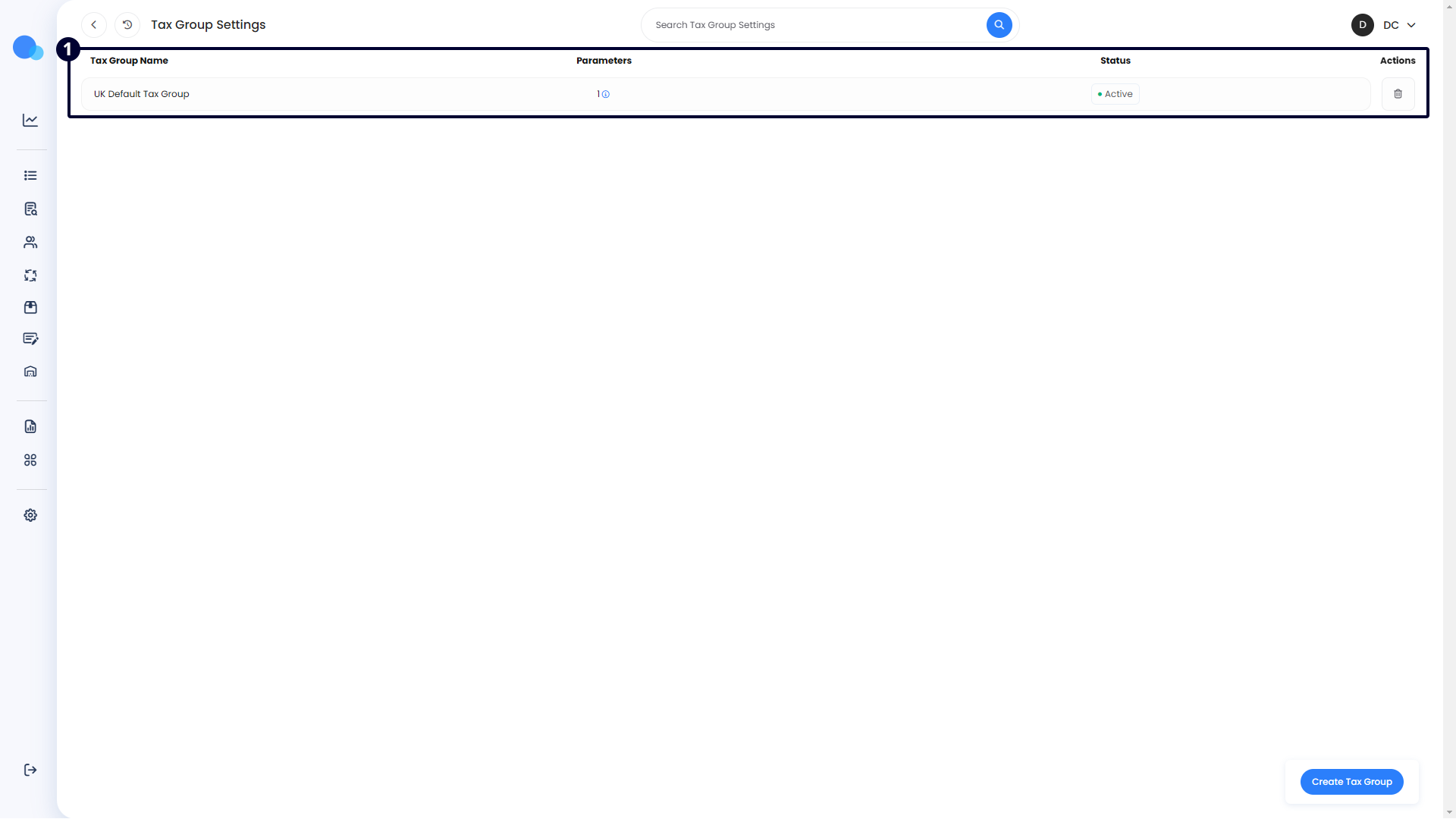
Managing Existing Tax Groups
-
Tax Group Name: This column displays the name you assigned to the tax group during setup. It helps identify the tax group.
-
Parameters: This column shows the number of countries and entries included in the tax group. Hover over the number to view a detailed list of all the countries, regions, and their respective tax rates.
-
Status: This column indicates the current status of the tax group, either "Active" or "Inactive." Clicking the button in this column will toggle the status. Disabling a tax group makes it unavailable for use while retaining its configuration.
-
Actions: The trash bin icon in this column allows you to delete the tax group. However, if the tax group is assigned to any inventory or set as the default tax group in the "System Defaults" page, you cannot delete it until you remove these assignments.
Clicking on an entry will allow you to view and edit the details, returning you to the same page view as when you initially created the tax group.
Quickly Review Tax Details: Hover over the number in the "Parameters" column to view a detailed list of all countries, regions, and their respective tax rates within the tax group. This feature helps ensure that all settings are correctly configured without the need to open each entry.
No Comments